Organize Your Fleet
Prerequisite: You have completed Connect Your First Device and your device is online in the Qbee console.
This tutorial teaches one concept: tags. Tags let you label devices, filter the device list, and apply configuration to all devices that share a tag.
Step 1 — Create a tag
In the Qbee console, go to the Tags page in the main navigation.
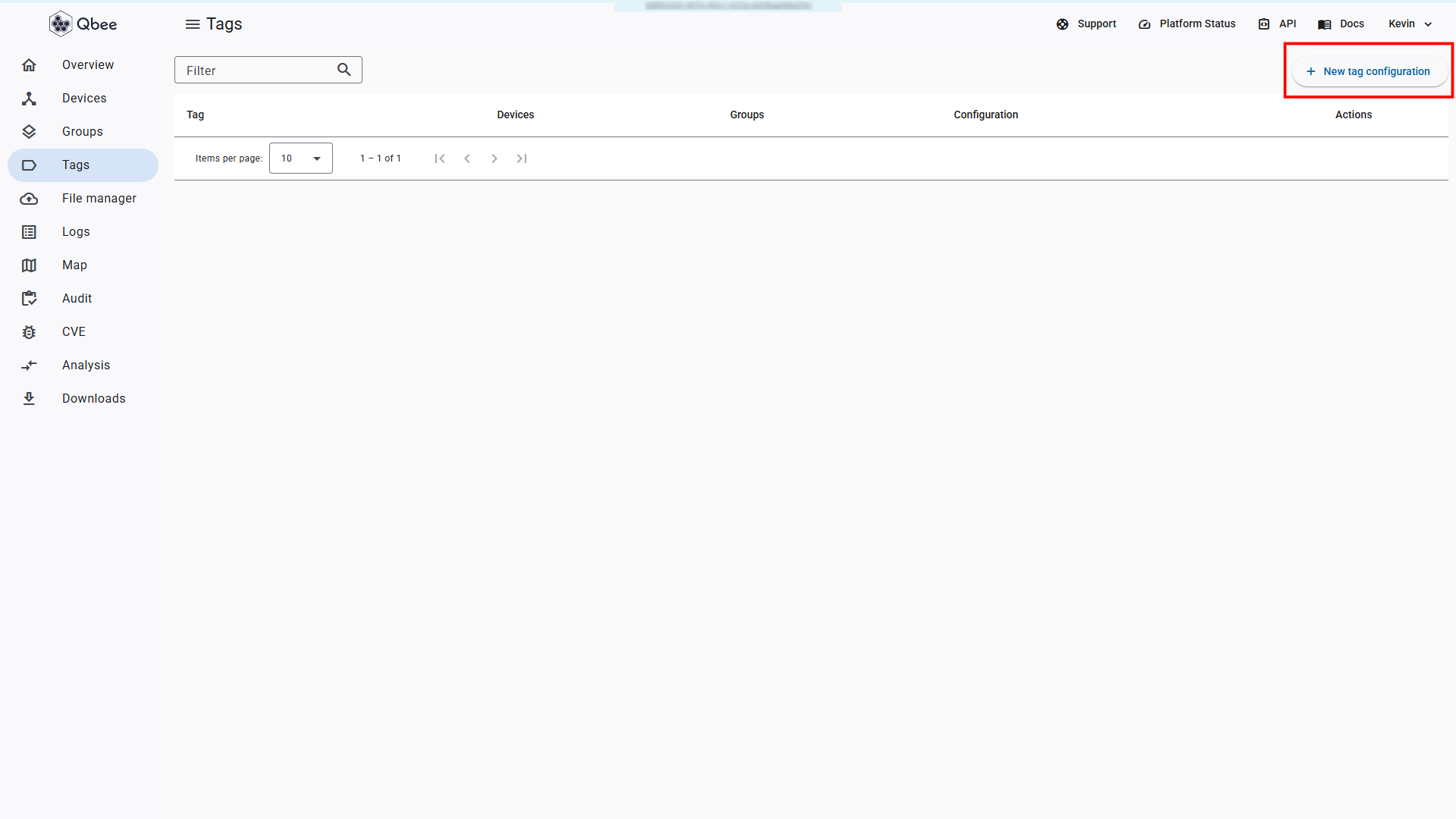
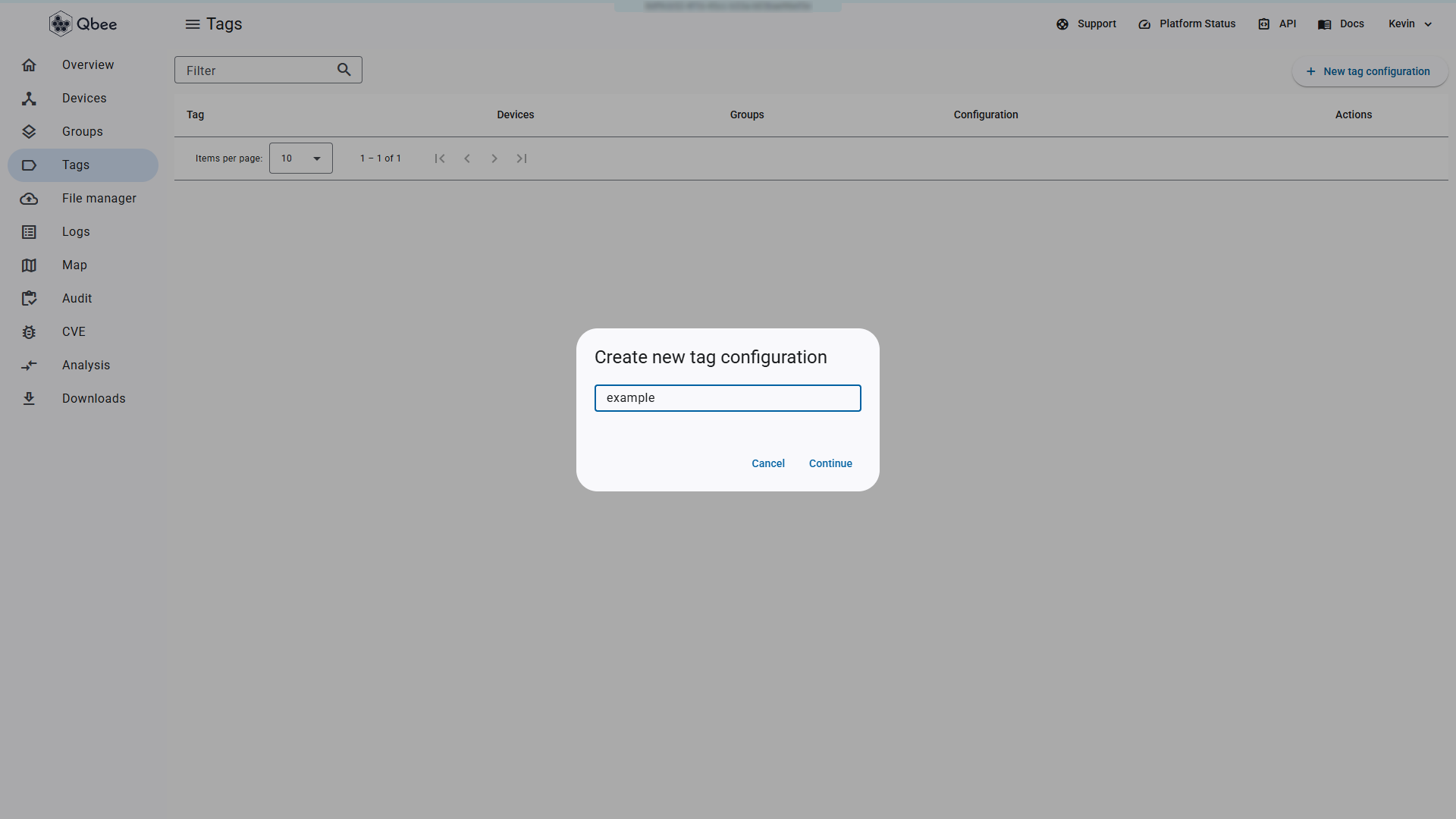
Click + New tag configuration, enter the name example, and press Continue. The tag configuration opens automatically.
Tags require a committed configuration
A tag is not created until you configure and commit at least one setting. Enable something (for example, under Settings select Enable heartbeat monitoring), then Save and Commit changes. The tag will then exist in the system and be available to assign to devices.
Expected outcome: The tag example appears in your tag list.
Step 2 — Assign tags to your device
Go to the Devices page and select your device. In the Overview tab, find Tags and click edit. In the "Edit tags" dialog, select the existing example tag.
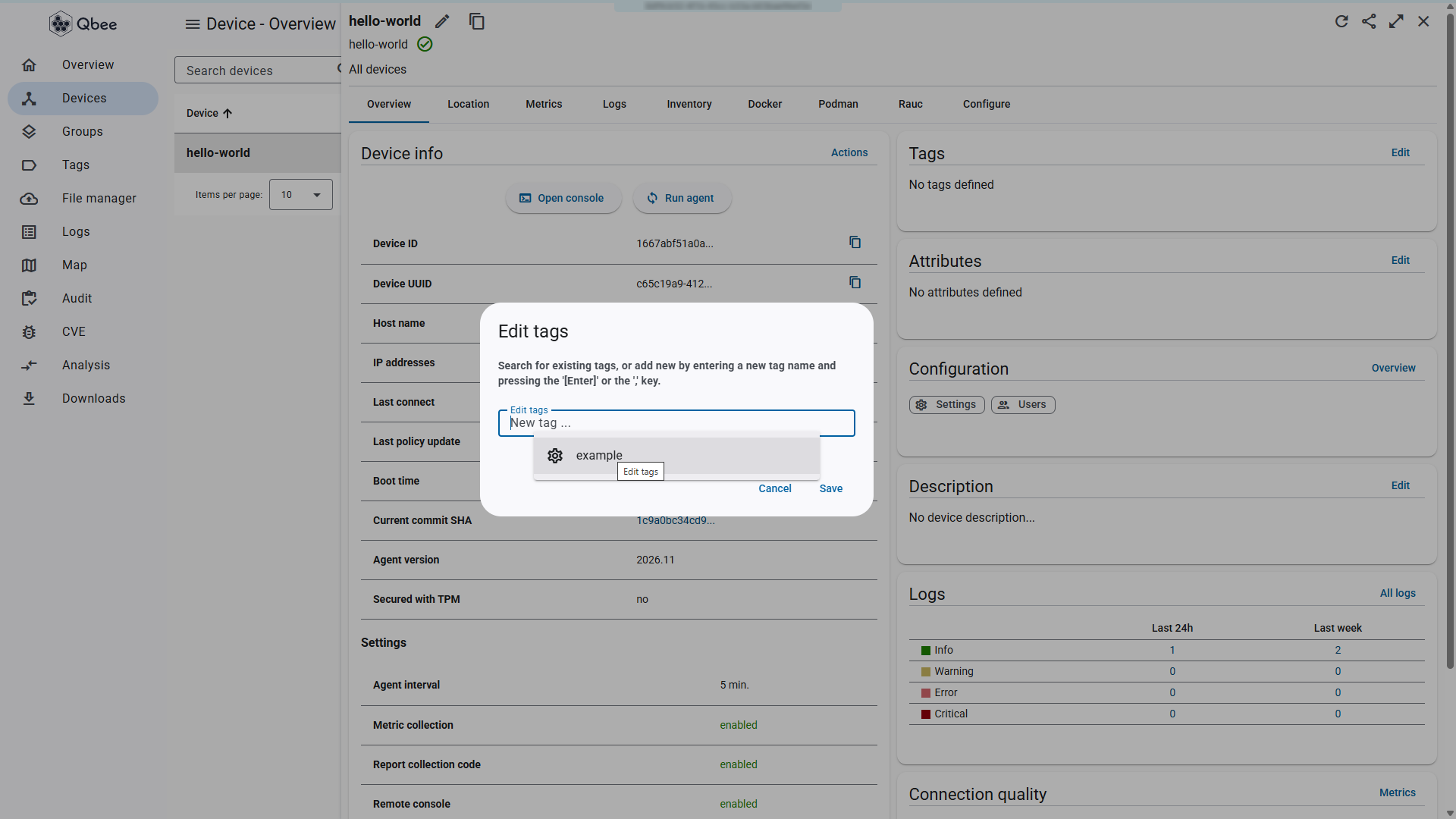
Then type hello-world and press Enter to create a new tag inline.
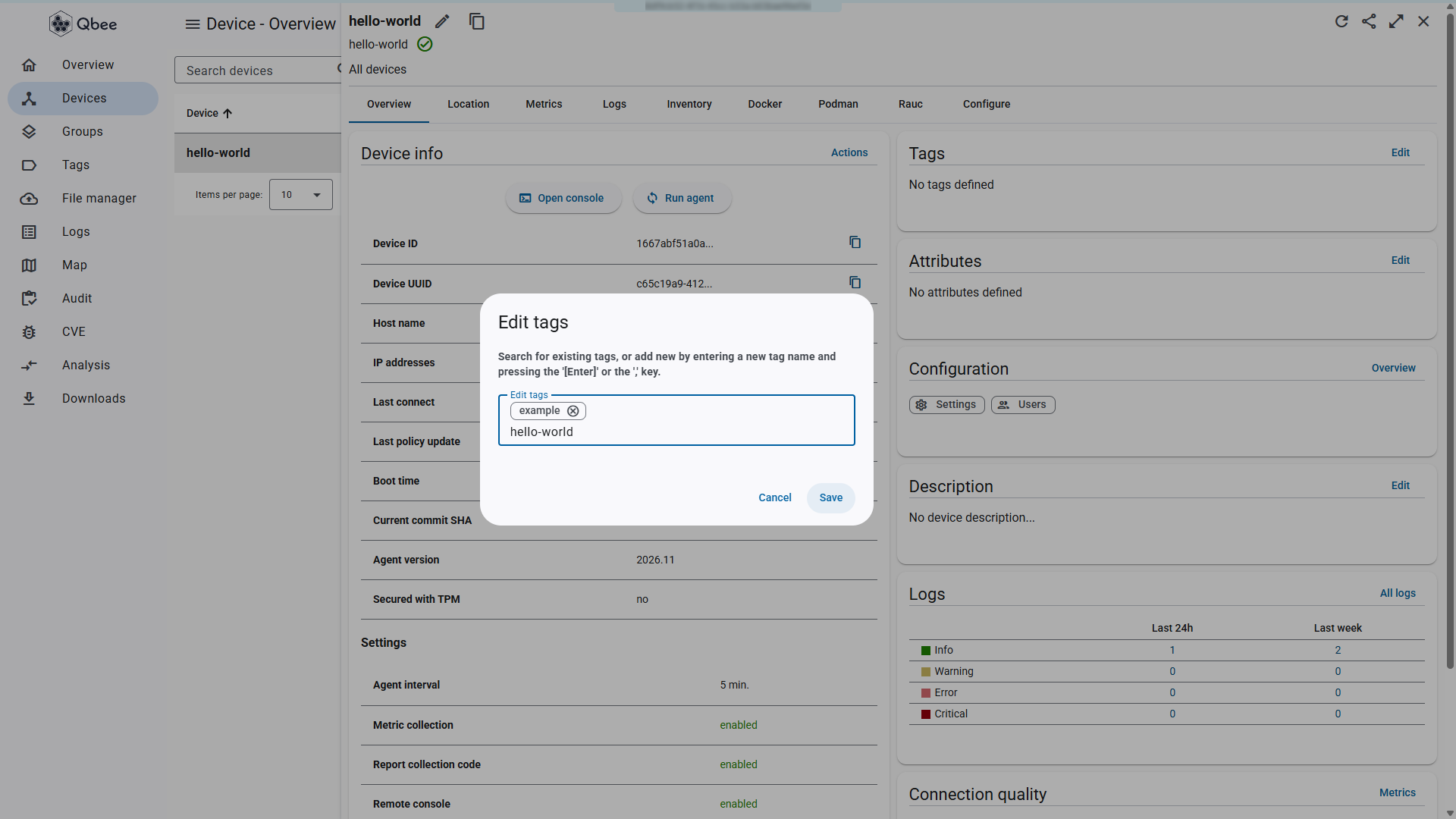
Click Save.
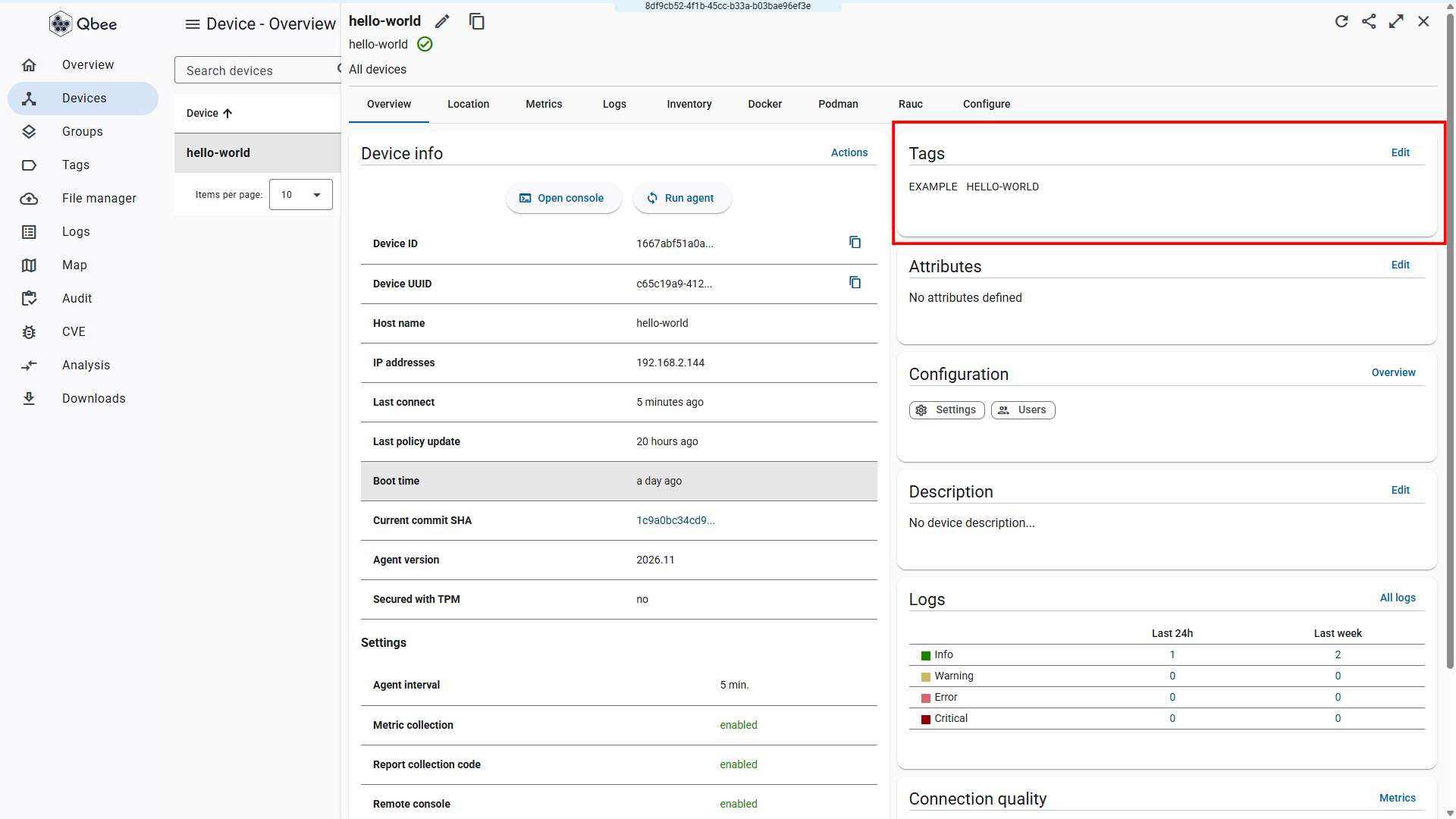
Expected outcome: Both tags appear in the device's tag list.
Step 3 — Filter devices by tag
On the Devices page, select Tag name from the dropdown. Type example in the search field, press Enter, then click the filter button.
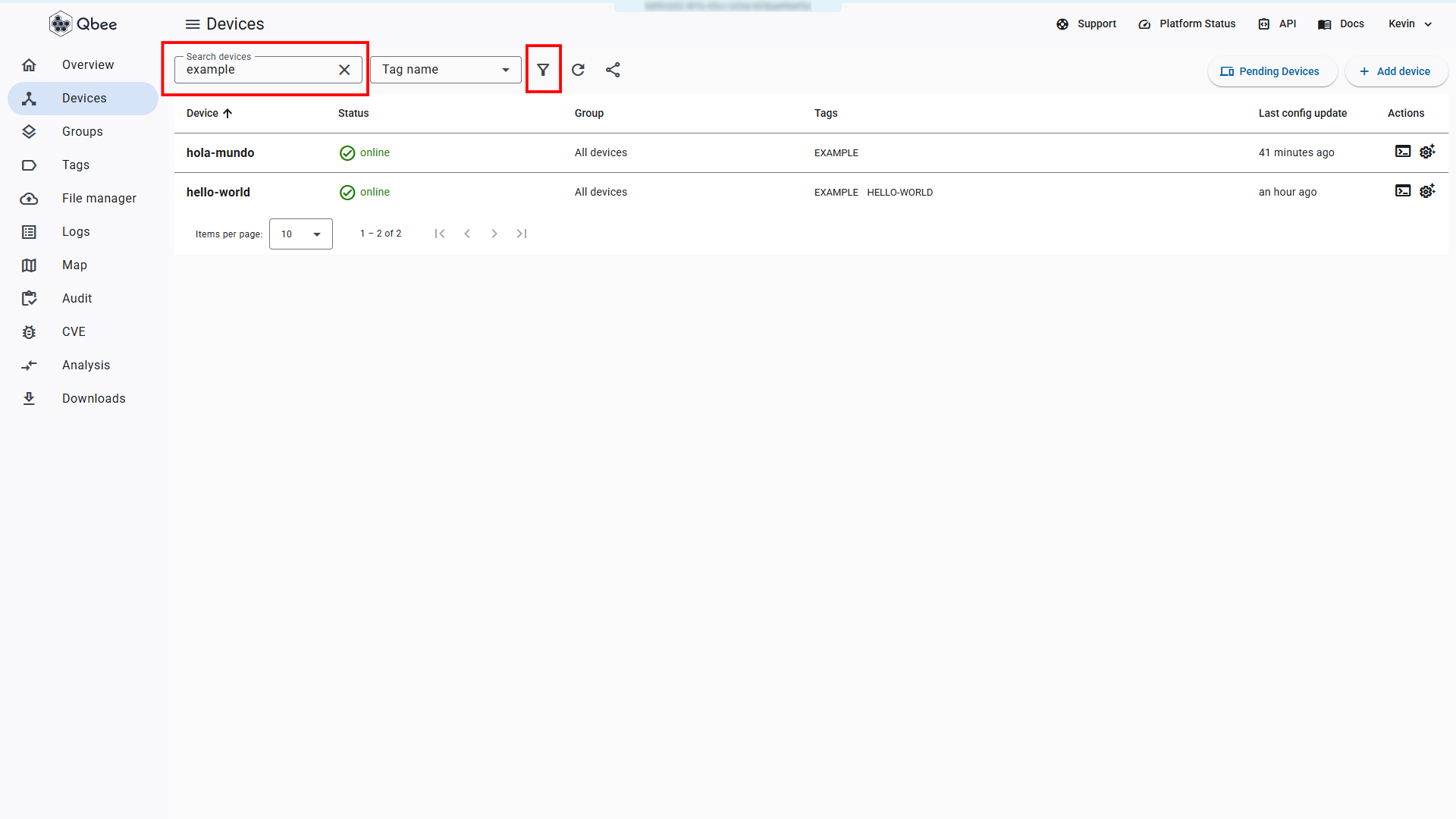
Expected outcome: Only devices with the example tag are shown.
Step 4 — Combine tag filters
With the example filter still active, repeat the search process for the hello-world tag. This filters the list further, showing only devices that have both tags. Tag filters always use AND logic: a device must match every tag in the filter to appear.
Remove the hello-world filter to return to showing all devices with the example tag.
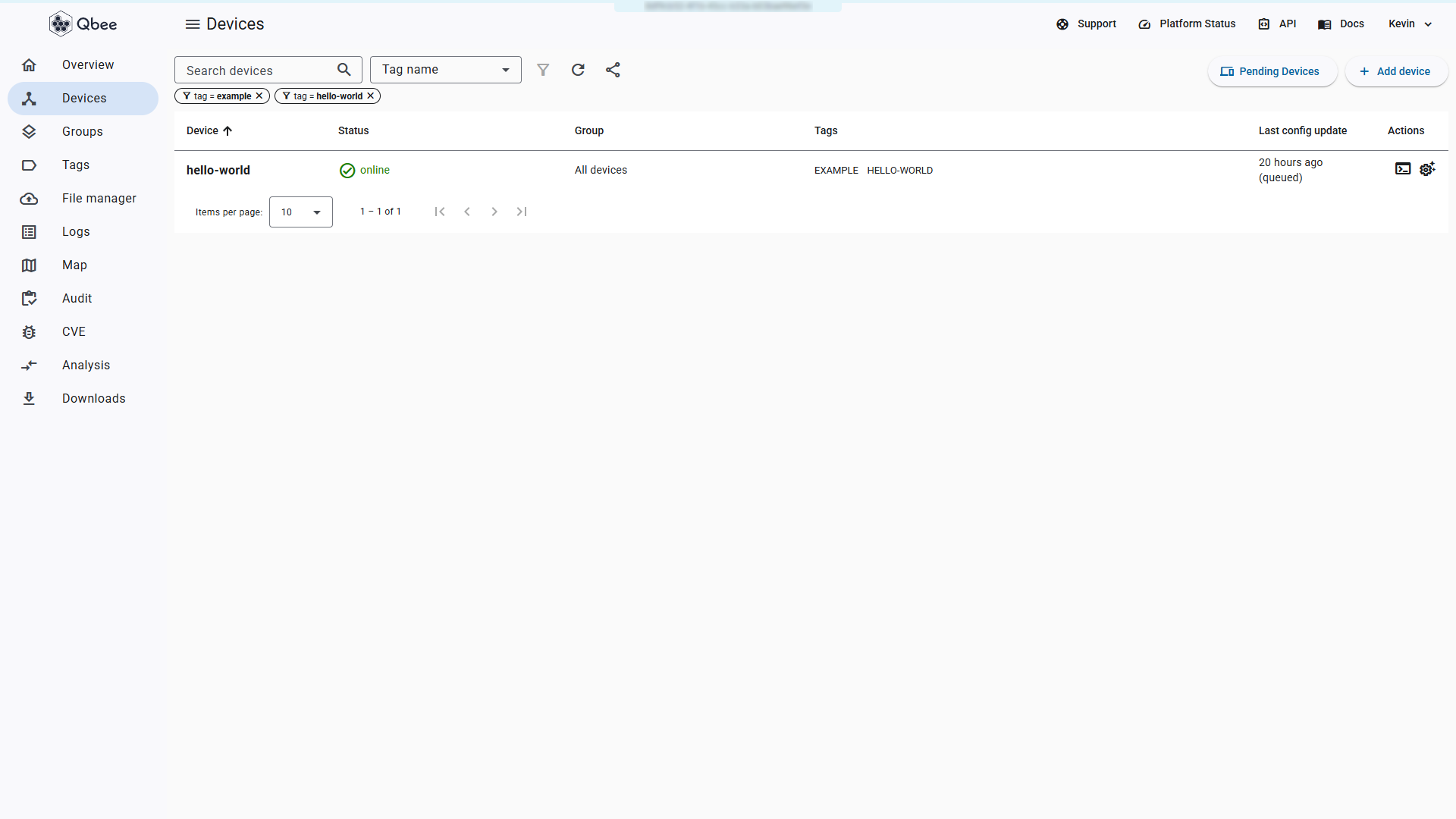
Expected outcome: You can add and remove tag filters to narrow or widen your device search.
Done
You have created tags, assigned them to a device, and used tag filters to search your fleet. Because you can configure a tag the same way you configure a single device, tags are an effective way to manage configuration across a fleet: assign the same tag to related devices, then apply configuration once to the tag rather than individually to each device.
What Next?
| I want to... | Go to |
|---|---|
| Dive deeper into fleet organization, groups, and tags | Fleet Organization |
| Understand how the platform works under the hood | Understanding Qbee |
| See all configuration options for devices and groups | Configuration |