

Running Scripts
Why do you want to run scripts remotely?
Linux has many specific settings and configurations. Often it is easiest to run a script to configure items or setup things. It is possible to define and run scripts remotely. Doing this with a state based tool ensures that the script will always run when new devices are added or when changes to the script occur.
How to run scripts remotely?
The tool that is used for this is again the versatile file distribution.
There are a few steps involved in running the script:
-
upload the script to file manager
-
potentially template the script with key-value parameters
-
create a file distribution distributing the script to the devices in scope
-
define a command to run
Implementing a retry bash script
How to introduce a retry function in bash scripts?We had many customers that wanted a retry function included in our file distribution. After careful evaluation of the different needs we came to the conclusion that it makes most sense to provide an example script that can do this instead of including a static function in the UI. A typical example for using this script is an external file download that might not succeed on the first try due to problems with the remote source or network. Our retry bash script will allow you to control the next step and eventually receive the correct exit code in qbee.
A bash script that attempts to execute a command and retry if that command returns non-zero exit code. The command, retry attempts and initial wait time is configurable. The retry mechanism uses exponential back-off mechanism. The shell script must exit with the same code as the last exit code of the executed command such that qbee can correctly process it in the logs. On retry and error, an appropriate message should be printed to standard output.
retry_command.sh#!/bin/bash # Default values COMMAND="" MAX_RETRIES=3 INITIAL_WAIT=1 # Help message usage() { echo "Usage: $0 -c <command> [-r <retries>] [-w <initial_wait_time>]" echo echo " -c: The command to execute." echo " -r: Maximum number of retries. Default: $MAX_RETRIES" echo " -w: Initial wait time in seconds before retrying. Default: $INITIAL_WAIT" exit 1 } # Parse command-line arguments while getopts ":c:r:w:" opt; do case "${opt}" in c) COMMAND=${OPTARG} ;; r) MAX_RETRIES=${OPTARG} ;; w) INITIAL_WAIT=${OPTARG} ;; *) usage ;; esac done # Ensure command is provided if [ -z "$COMMAND" ]; then echo "Error: You must provide a command to execute." usage fi retry_count=0 wait_time=$INITIAL_WAIT while true; do # Execute the command eval $COMMAND exit_code=$? # If the command was successful, exit with its exit code if [ $exit_code -eq 0 ]; then exit $exit_code fi # If the maximum number of retries has been reached, exit with the last exit code if [ $retry_count -ge $MAX_RETRIES ]; then echo "Command failed after $MAX_RETRIES attempts. Exiting with exit code $exit_code." exit $exit_code fi # If the command failed, print an error message and wait for the next retry echo "Command failed with exit code $exit_code. Retrying in $wait_time seconds..." sleep $wait_time # Increment the retry count and double the wait time retry_count=$((retry_count+1)) wait_time=$((wait_time*2)) done
Save the script in a file, for example, retry_command.sh. Make it executable using chmod +x retry_command.sh.
Usage example - use in "command to run" to execute your command or script.
./retry_command.sh -c "your_command_here" -r 5 -w 2This would try to run your_command_here, and if it fails, it would retry up to 5 times with an initial wait time of 2 seconds that doubles with each retry attempt.
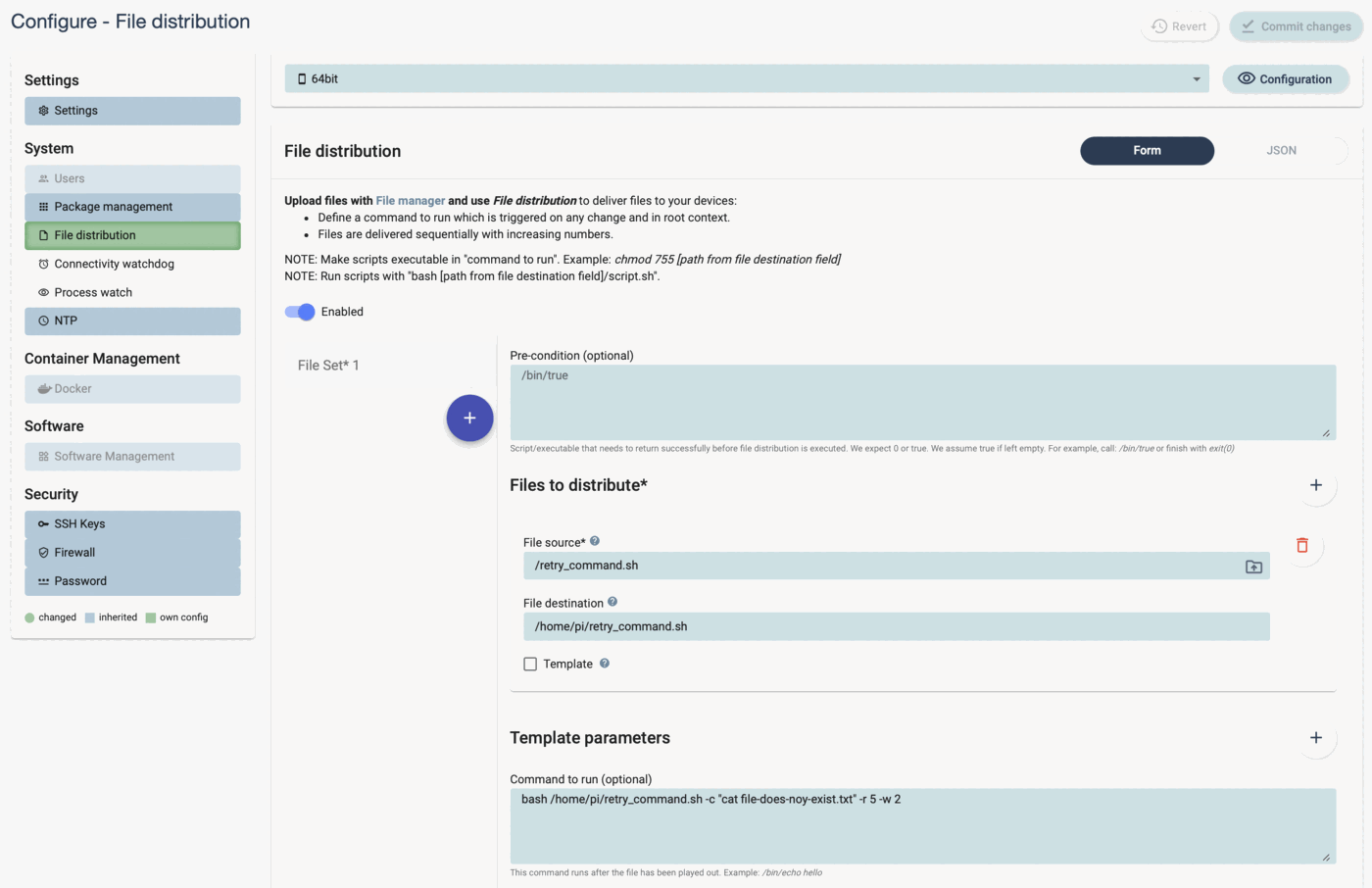
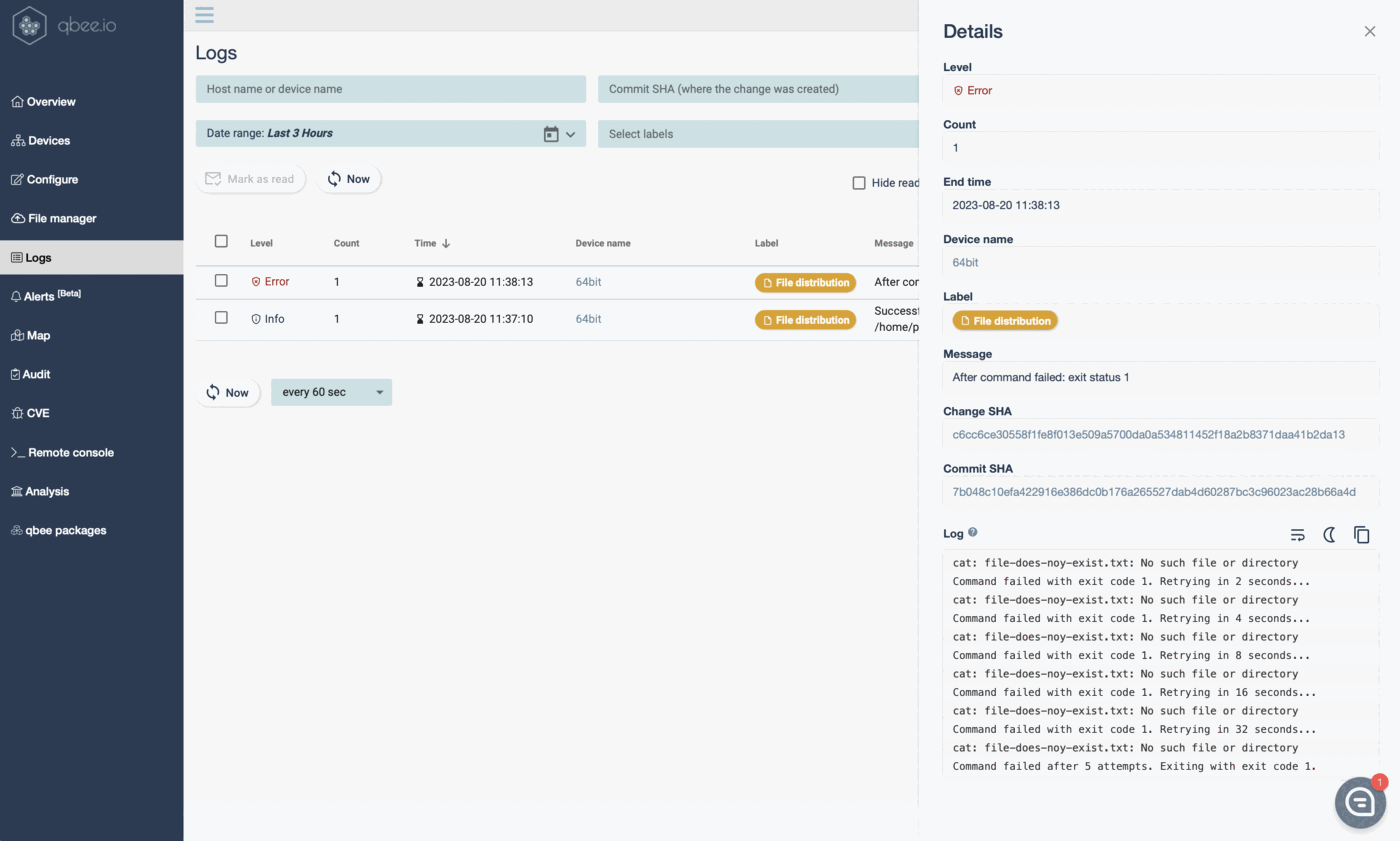
Below you see a screenshot of the configuration and the output. Instead of running a cat on a non-existing file you could use your installation routines and even initiate a roll-back. The key take away is that qbee will log correctly if the command execution still returns failure after all attempts or a success. In any case you can see the output log understanding how many tries that were necessary to succeed.
Updated 3 days ago