Managing the Application
Authentication
qbee-connect uses the OAuth2 Device Authorization Flow for secure login. Your browser handles all authentication — no passwords are entered in the application itself. After a one-time login, credentials are stored locally and reused across sessions.
Note
For step-by-step login instructions, see Getting Started.
Note
For details on OAuth2 flow, credential storage, and token handling, see Security.
Logging Out
Closing the qbee-connect window does not log you out. The application minimizes to the system tray, and your credentials persist between sessions.
Tip
To force re-authentication, delete the credential file:
Linux / macOS:
rm ~/.qbee/qbee-cli.json
Windows:
Remove-Item "$env:USERPROFILE\.qbee\qbee-cli.json"
The next time qbee-connect starts (or receives a 401 response from the API), the login dialog appears again.
Note
For more on credential handling and security, see Security.
Switch Between Accounts
Account switching is available if you have access to two or more Qbee tenant accounts.
-
Log in to qbee-connect (see Getting Started for login instructions).
-
In the pagination bar at the bottom of the device table, locate the Account: label followed by a dropdown.
-
Click the Account: dropdown and select the target account. Accounts are sorted alphabetically.
-
qbee-connect switches to the selected account and refreshes the device table.
Expected outcome
The device table updates to show the device inventory for the newly selected account.
Note
The account switcher is only visible if your user has access to multiple accounts.
System Tray
qbee-connect integrates with your operating system's system tray (notification area), allowing the application to run in the background while keeping all active connections alive. This lets you close the main window without terminating your tunnels.
Minimize to System Tray
-
Close the main qbee-connect window by clicking the window's close button (× on the title bar).
-
qbee-connect does not exit — it continues running in the system tray.
-
All active port-forwarding connections remain running in the background.
Finding the tray icon
The qbee-connect tray icon appears in the system notification area:
- Linux: Typically in the top-right panel or system tray area, depending on your desktop environment.
- macOS: In the menu bar at the top of the screen.
- Windows: In the notification area of the taskbar (click the up arrow to expand hidden icons if necessary).
System Tray Menu
Right-click (or click on macOS) the qbee-connect tray icon to open the tray menu.
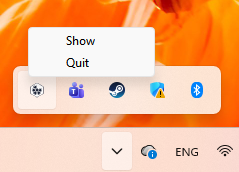
The menu contains two items:
| Menu Item | Action |
|---|---|
| Show | Opens the main qbee-connect window. |
| Quit | Exits the application completely. All active connections are terminated. |
Restore the Window
To bring back the main window:
-
Right-click (or click on macOS) the qbee-connect tray icon.
-
Click Show from the tray menu.
-
The main window reappears with the device table and all active connections intact.
Expected outcome
The main window opens, showing the same state as when you closed it — including active connections, search filters, and pagination position.
Quit qbee-connect
To fully exit the application:
-
Right-click (or click on macOS) the qbee-connect tray icon.
-
Click Quit from the tray menu.
-
All active port-forwarding connections are terminated immediately.
-
The application exits and the tray icon is removed.
Warning
Clicking Quit closes all active tunnels. Any SSH sessions, file transfers, or other services using those tunnels are disconnected. If you want to keep connections running, use Show to return to the main window instead.
Application Lifecycle
Launch Options
When launching qbee-connect from a terminal, you can specify a custom base URL for the Qbee API:
qbee-connect --base-url=https://custom-qbee-instance.example.com
This option is useful for:
- Connecting to custom Qbee deployments
- Testing against staging or development environments
- Enterprise environments with self-hosted Qbee instances
Note
Most users do not need this option. Only use --base-url if you are connecting to a non-standard Qbee API endpoint. If you do not specify --base-url, qbee-connect connects to the default Qbee.io production API.
Auto-start Behavior
qbee-connect starts when you launch it from your application menu or terminal. It does not currently auto-start on system boot.
See Also
| Intent | Document |
|---|---|
| Install qbee-connect and connect to your first device | Getting Started |
| Understand authentication | Overview → How qbee-connect Works |
| Browse my devices | Devices & Connections → Finding Devices |
| Open a connection to a device | Devices & Connections → Creating Connections |
| Troubleshoot an authentication issue | Troubleshooting |